Hero with a flicker-free theme-aware image
The hero is the headline band at the top of the page: a big claim, two call-to-action buttons, and a marketing image of the product. Your job is to make that image match the visitor’s theme the instant the page paints — dark in dark mode, light otherwise — with no flicker, where the wrong image shows for a frame and then snaps to the right one.
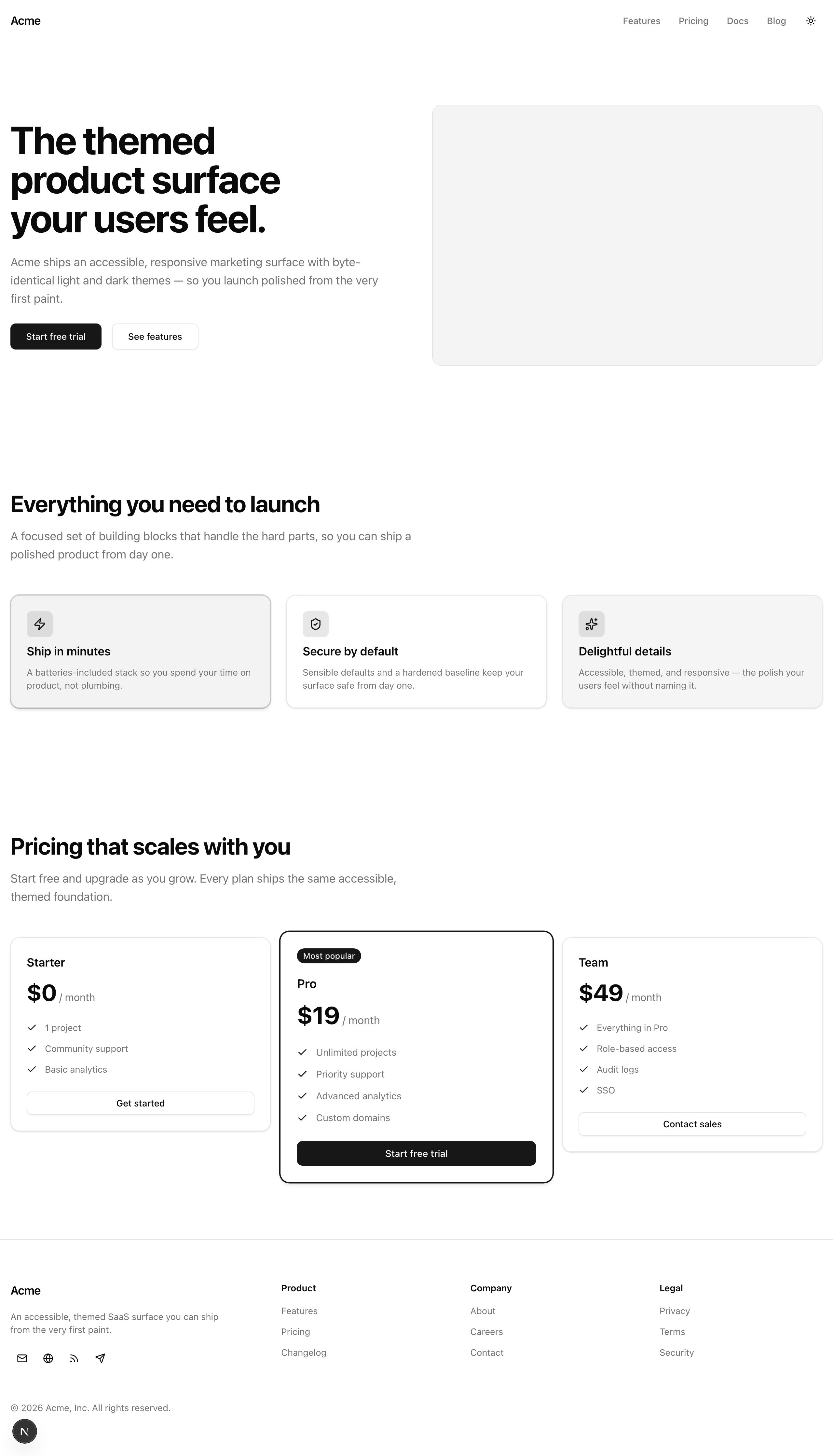

At lg the copy sits on the left and the image on the right; below that they stack with the copy on top. Flip your OS theme and the image swaps — no flash, no layout shift.
Your mission
Section titled “Your mission”The hero owns the page’s single <h1>, the anchor for the heading hierarchy the rest of the page hangs off. The feature grid’s <h2> in the next lesson must not skip a level, so there can be exactly one <h1>, and it lives here. The hero is also where the theme becomes visible for the first time, so it has to honor the project’s no-flash commitment from the very first frame.
That commitment turns on one decision. The naive approach reads the current theme in JavaScript and renders a single <img> with the matching source. But that image cannot exist until JavaScript runs, which is after the first paint, so the page paints with no image or the wrong one and then snaps to the right one. That snap is the flash. Instead, render both theme images server-side and let CSS pick the visible one. The correct image is already in the HTML, and the browser hides the other before any JavaScript runs.
The swap must track the site’s .dark class, the class next-themes flips on <html>, not the OS prefers-color-scheme media query. They agree today because the theme defaults to system, but a later lesson adds a manual toggle, and from then on a visitor can choose dark on a light OS. Key the image off the class and it follows that choice; key it off the media query and it ignores the toggle. Build the swap with Tailwind’s dark: variant, the class-driven hook.
Use a raw <img>, not a <picture> element with a prefers-color-scheme source, which tracks the wrong signal.
<h1>, the supporting copy, and two working CTA buttons that navigate.lg the copy and image sit side by side; below lg they stack with no horizontal scroll.Coding time
Section titled “Coding time”Build src/components/theme-aware-image.tsx and src/components/hero.tsx against the brief and the tests, then open the solution below to compare.
Reference solution and walkthrough
Start with theme-aware-image.tsx, the primitive the hero consumes. It carries the no-flash mechanism, so read it one piece at a time.
import type { ComponentProps } from 'react';
import { cn } from '@/lib/utils';
export type ThemeAwareImageProps = {  light: string;  dark: string;  alt: string;  width: number;  height: number;} & ComponentProps<'img'>;
export const ThemeAwareImage = ({  light,  dark,  alt,  width,  height,  className,  ...props}: ThemeAwareImageProps) => (  <>    <img      data-testid="hero-image-light"      src={light}      alt={alt}      width={width}      height={height}      className={cn('block dark:hidden', className)}      {...props}    />    <img      data-testid="hero-image-dark"      src={dark}      alt={alt}      width={width}      height={height}      className={cn('hidden dark:block', className)}      {...props}    />  </>);
light and dark are the two image sources; alt, width, and height are shared. width and height are required because they reserve the layout box. Intersecting with ComponentProps<'img'> lets a caller pass through any other <img> attribute.
import type { ComponentProps } from 'react';
import { cn } from '@/lib/utils';
export type ThemeAwareImageProps = {  light: string;  dark: string;  alt: string;  width: number;  height: number;} & ComponentProps<'img'>;
export const ThemeAwareImage = ({  light,  dark,  alt,  width,  height,  className,  ...props}: ThemeAwareImageProps) => (  <>    <img      data-testid="hero-image-light"      src={light}      alt={alt}      width={width}      height={height}      className={cn('block dark:hidden', className)}      {...props}    />    <img      data-testid="hero-image-dark"      src={dark}      alt={alt}      width={width}      height={height}      className={cn('hidden dark:block', className)}      {...props}    />  </>);
className is pulled out on its own so it can merge into each <img> individually; everything else lands in ...props and spreads onto both.
import type { ComponentProps } from 'react';
import { cn } from '@/lib/utils';
export type ThemeAwareImageProps = {  light: string;  dark: string;  alt: string;  width: number;  height: number;} & ComponentProps<'img'>;
export const ThemeAwareImage = ({  light,  dark,  alt,  width,  height,  className,  ...props}: ThemeAwareImageProps) => (  <>    <img      data-testid="hero-image-light"      src={light}      alt={alt}      width={width}      height={height}      className={cn('block dark:hidden', className)}      {...props}    />    <img      data-testid="hero-image-dark"      src={dark}      alt={alt}      width={width}      height={height}      className={cn('hidden dark:block', className)}      {...props}    />  </>);
The light source. block dark:hidden shows it by default and hides it the moment .dark lands on <html>.
import type { ComponentProps } from 'react';
import { cn } from '@/lib/utils';
export type ThemeAwareImageProps = {  light: string;  dark: string;  alt: string;  width: number;  height: number;} & ComponentProps<'img'>;
export const ThemeAwareImage = ({  light,  dark,  alt,  width,  height,  className,  ...props}: ThemeAwareImageProps) => (  <>    <img      data-testid="hero-image-light"      src={light}      alt={alt}      width={width}      height={height}      className={cn('block dark:hidden', className)}      {...props}    />    <img      data-testid="hero-image-dark"      src={dark}      alt={alt}      width={width}      height={height}      className={cn('hidden dark:block', className)}      {...props}    />  </>);
The dark source, the exact mirror. hidden dark:block keeps it out until .dark is on, then reveals it. The two are never both visible; the .dark class alone decides which one shows.
import type { ComponentProps } from 'react';
import { cn } from '@/lib/utils';
export type ThemeAwareImageProps = {  light: string;  dark: string;  alt: string;  width: number;  height: number;} & ComponentProps<'img'>;
export const ThemeAwareImage = ({  light,  dark,  alt,  width,  height,  className,  ...props}: ThemeAwareImageProps) => (  <>    <img      data-testid="hero-image-light"      src={light}      alt={alt}      width={width}      height={height}      className={cn('block dark:hidden', className)}      {...props}    />    <img      data-testid="hero-image-dark"      src={dark}      alt={alt}      width={width}      height={height}      className={cn('hidden dark:block', className)}      {...props}    />  </>);
The fragment ships both <img> tags to the browser, so both are in the HTML on first paint and CSS picks the visible one. The right image is on screen before any of your code runs.
Because both tags are in the server-rendered HTML and the next-themes pre-paint script set .dark on <html> before the body rendered, the browser hides the wrong one in the same pass that paints the first frame. The dark: variant keys off that class, not the OS preference, so when you add the manual toggle in a later lesson the image follows it.
Now hero.tsx composes that primitive into the band. Read it straight through; the subtle parts are called out underneath.
import Link from 'next/link';
import { ThemeAwareImage } from '@/components/theme-aware-image';import { Button } from '@/components/ui/button';
export const Hero = () => (  <section    data-testid="hero"    className="container mx-auto grid items-center gap-12 px-4 py-16 lg:grid-cols-2 lg:py-24"  >    <div className="flex flex-col items-start gap-6">      <h1 className="text-4xl font-bold tracking-tight text-balance text-foreground sm:text-5xl lg:text-6xl">        The themed product surface your users feel.      </h1>      <p className="max-w-prose text-lg text-pretty text-muted-foreground">        Acme ships an accessible, responsive marketing surface with        byte-identical light and dark themes — so you launch polished from the        very first paint.      </p>      <div className="flex flex-wrap gap-4">        <Button asChild size="lg">          <Link href="#signup">Start free trial</Link>        </Button>        <Button asChild size="lg" variant="outline">          <Link href="#features">See features</Link>        </Button>      </div>    </div>
    <ThemeAwareImage      light="/hero-light.png"      dark="/hero-dark.png"      alt="A preview of the Acme product dashboard"      width={1200}      height={800}      className="h-auto w-full rounded-xl border border-border"    />  </section>);
A few decisions are worth pausing on.
The <section> is a grid: two columns at lg:grid-cols-2, one below. So at lg the copy and image sit side by side, and below lg they stack with the copy first. gap-12 keeps them apart without margins, and items-center vertically centers the image against the copy.
There is exactly one <h1>, carrying text-balance and a size that steps up at sm: and lg:. It is the page’s only first-level heading, which is why the next lesson’s feature section opens with an <h2>.
Each CTA is a <Button asChild> wrapping a <Link>. asChild hands the Button’s styling to its child instead of rendering its own <button>, so you get a real anchor that navigates, dressed as a button. The second CTA uses variant="outline" to read as secondary. The Button’s base classes give each CTA a visible focus ring when you tab.
ThemeAwareImage gets width={1200} and height={800}. Those land on both <img> tags and reserve the layout box, so neither loading the image nor swapping the theme shifts anything around it. The className merges through to each source via cn(), filling the column with a rounded border.
The dark: variant and the class strategy your block dark:hidden / hidden dark:block swap relies on.
The library that injects the pre-paint script setting the .dark class before first paint — the source of the no-flash guarantee.
Moment of truth
Section titled “Moment of truth”Run the lesson’s test suite:
pnpm test:lesson 7The suite renders the hero to its server-side HTML, the exact markup of the first paint, and checks the no-flash promise there: both theme images present as siblings, pointing at different files, the light one visible by default (block dark:hidden) and the dark one hidden by default (hidden dark:block), sharing the same alt, width, and height. It also confirms exactly one <h1>, supporting copy, and two CTAs with non-empty hrefs. A green run looks like this:
 ✓ tests/lessons/Lesson 7.test.ts (7 tests)
 Test Files  1 passed (1)      Tests  7 passed (7)
Then run the full gate, Biome, the type-checker, and a production build:
pnpm verifyThe tests confirm both images are in the HTML, but they cannot watch a real browser repaint, so the no-flash and no-shift behavior is yours to check by hand. Boot the page with pnpm dev and work through these:
lg the copy and image sit side by side; below lg they stack with no horizontal scroll.