Pricing table with a featured tier
This is where a SaaS asks for money, so the pricing band earns three cards in a row: Starter, Pro, and Team. Pro sits in the middle, accented and lifted a notch so the eye lands on it first. The JSX is ordinary; the lesson is about where the “this one is special” decision lives.
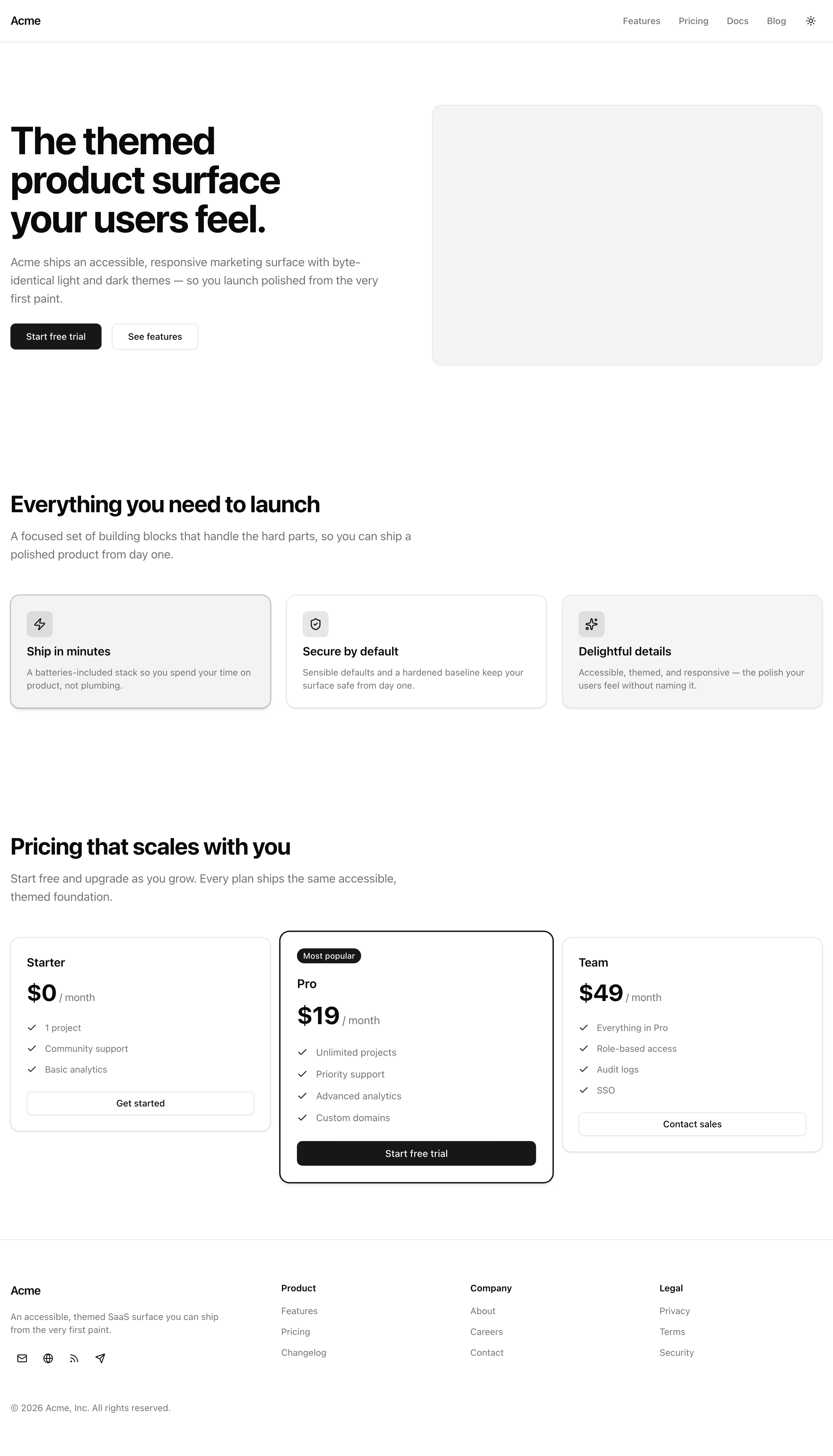
The finished pricing table at desktop width, with the middle Pro tier reading as the obvious pick.
Your mission
Section titled “Your mission”Build the band from two scaffolds: pricing-card.tsx renders one tier, and pricing-table.tsx lays the tiers out in a responsive grid.
The content already exists.
pricingTiers in src/lib/data.ts is an array of three tiers, each with a name, price, period, a features list, a cta, and an optional featured flag.
Your table maps over that array and hardcodes nothing per tier.
Treat visual emphasis as data, not markup.
The temptation, when one card needs to stand out, is to reach into the markup and hand-decorate Pro: a ring here, a badge there.
Instead, let the single featured flag drive the accent ring, the “Most popular” badge, and the scale lift.
When a fourth tier ships next quarter, or marketing decides Team is now the popular one, someone flips a boolean in data.ts and the band re-promotes itself with no component touched.
Two accessibility traps live on pricing pages, and you pre-empt both by construction.
The first is motion: the lift that makes Pro pop is a transform, so gate it — it kicks in only at md and up, and flattens back out for anyone who prefers reduced motion.
The second is contrast: the billing period and feature list lean on muted gray text, exactly where pages fail a color-contrast audit.
Pull colors only from the semantic tokens the project ships, and text-muted-foreground over bg-background clears AA on its own; a hand-picked hex or one-off gray is how you’d break it.
Out of scope: a monthly/yearly billing toggle and real checkout.
The CTAs are plain anchor links pointing at the href values in data.ts; wiring them to Stripe comes much later.
pricingTiers, each showing its name, price, billing period, full feature list, and CTA.featured is visually distinct — an accent ring plus a “Most popular” badge — and no other tier is.md they stack into one column with no horizontal scroll.Coding time
Section titled “Coding time”Fill in src/components/pricing-card.tsx and src/components/pricing-table.tsx against the brief and the tests.
Try it before opening the solution — the whole value is deciding for yourself where the featured decision should live.
Reference solution and walkthrough
Start with the card. It renders one tier and knows nothing about the layout around it.
import { Check } from 'lucide-react';import Link from 'next/link';import type { ComponentProps } from 'react';
import { Badge } from '@/components/ui/badge';import { Button } from '@/components/ui/button';import { CardContent, CardFooter, CardHeader } from '@/components/ui/card';import { cn } from '@/lib/utils';
export type PricingCardProps = ComponentProps<'article'> & {  name: string;  price: string;  period: 'month' | 'year';  features: string[];  featured?: boolean;  cta: { label: string; href: string };};
export const PricingCard = ({  name,  price,  period,  features,  featured = false,  cta,  className,  ...props}: PricingCardProps) => (  <article    data-testid={featured ? 'pricing-card-featured' : 'pricing-card'}    className={cn(      'flex flex-col gap-6 rounded-xl border border-border bg-card py-6 text-card-foreground shadow-sm',      featured && 'border-primary shadow-md ring-1 ring-primary',      className,    )}    {...props}  >    <CardHeader className="gap-3">      {featured ? <Badge className="mb-1">Most popular</Badge> : null}      <h3 className="text-lg font-semibold">{name}</h3>      <p className="flex items-baseline gap-1">        <span className="text-4xl font-bold tracking-tight text-foreground">          {price}        </span>        <span className="text-muted-foreground">/ {period}</span>      </p>    </CardHeader>    <CardContent>      <ul className="flex flex-col gap-3">        {features.map((feature) => (          <li key={feature} className="flex items-center gap-3">            <Check className="size-4 text-primary" />            <span className="text-sm text-muted-foreground">{feature}</span>          </li>        ))}      </ul>    </CardContent>    <CardFooter>      <Button        asChild        className="w-full"        variant={featured ? 'default' : 'outline'}      >        <Link href={cta.href}>{cta.label}</Link>      </Button>    </CardFooter>  </article>);
Intersecting PricingCardProps with ComponentProps<'article'> is what lets the card accept a className and a ...props spread it forwards onto the <article>.
That is the channel the table uses to hand the scale lift down without the card knowing anything about it.
Keep the public shape — data.ts imports PricingCardProps to type its array.
import { Check } from 'lucide-react';import Link from 'next/link';import type { ComponentProps } from 'react';
import { Badge } from '@/components/ui/badge';import { Button } from '@/components/ui/button';import { CardContent, CardFooter, CardHeader } from '@/components/ui/card';import { cn } from '@/lib/utils';
export type PricingCardProps = ComponentProps<'article'> & {  name: string;  price: string;  period: 'month' | 'year';  features: string[];  featured?: boolean;  cta: { label: string; href: string };};
export const PricingCard = ({  name,  price,  period,  features,  featured = false,  cta,  className,  ...props}: PricingCardProps) => (  <article    data-testid={featured ? 'pricing-card-featured' : 'pricing-card'}    className={cn(      'flex flex-col gap-6 rounded-xl border border-border bg-card py-6 text-card-foreground shadow-sm',      featured && 'border-primary shadow-md ring-1 ring-primary',      className,    )}    {...props}  >    <CardHeader className="gap-3">      {featured ? <Badge className="mb-1">Most popular</Badge> : null}      <h3 className="text-lg font-semibold">{name}</h3>      <p className="flex items-baseline gap-1">        <span className="text-4xl font-bold tracking-tight text-foreground">          {price}        </span>        <span className="text-muted-foreground">/ {period}</span>      </p>    </CardHeader>    <CardContent>      <ul className="flex flex-col gap-3">        {features.map((feature) => (          <li key={feature} className="flex items-center gap-3">            <Check className="size-4 text-primary" />            <span className="text-sm text-muted-foreground">{feature}</span>          </li>        ))}      </ul>    </CardContent>    <CardFooter>      <Button        asChild        className="w-full"        variant={featured ? 'default' : 'outline'}      >        <Link href={cta.href}>{cta.label}</Link>      </Button>    </CardFooter>  </article>);
One boolean fans out to four places.
The data-testid flips so the table’s promotion is observable; cn() merges in border-primary shadow-md ring-1 ring-primary so the accent ring appears only when the flag is set; the badge renders only when featured; and the button switches to the solid default variant.
Flip featured to another tier in data.ts and the accent, badge, and solid button move with it, no per-tier markup.
import { Check } from 'lucide-react';import Link from 'next/link';import type { ComponentProps } from 'react';
import { Badge } from '@/components/ui/badge';import { Button } from '@/components/ui/button';import { CardContent, CardFooter, CardHeader } from '@/components/ui/card';import { cn } from '@/lib/utils';
export type PricingCardProps = ComponentProps<'article'> & {  name: string;  price: string;  period: 'month' | 'year';  features: string[];  featured?: boolean;  cta: { label: string; href: string };};
export const PricingCard = ({  name,  price,  period,  features,  featured = false,  cta,  className,  ...props}: PricingCardProps) => (  <article    data-testid={featured ? 'pricing-card-featured' : 'pricing-card'}    className={cn(      'flex flex-col gap-6 rounded-xl border border-border bg-card py-6 text-card-foreground shadow-sm',      featured && 'border-primary shadow-md ring-1 ring-primary',      className,    )}    {...props}  >    <CardHeader className="gap-3">      {featured ? <Badge className="mb-1">Most popular</Badge> : null}      <h3 className="text-lg font-semibold">{name}</h3>      <p className="flex items-baseline gap-1">        <span className="text-4xl font-bold tracking-tight text-foreground">          {price}        </span>        <span className="text-muted-foreground">/ {period}</span>      </p>    </CardHeader>    <CardContent>      <ul className="flex flex-col gap-3">        {features.map((feature) => (          <li key={feature} className="flex items-center gap-3">            <Check className="size-4 text-primary" />            <span className="text-sm text-muted-foreground">{feature}</span>          </li>        ))}      </ul>    </CardContent>    <CardFooter>      <Button        asChild        className="w-full"        variant={featured ? 'default' : 'outline'}      >        <Link href={cta.href}>{cta.label}</Link>      </Button>    </CardFooter>  </article>);
The <article> is the card surface itself: it carries the base classes by hand and composes CardHeader / CardContent / CardFooter inside, the same hand-composed approach as last lesson’s feature card.
That buys per-section spacing while keeping the <article> as the semantic landmark.
The section opens with an <h2>, so each tier name is an <h3> one level beneath it, with no skipped heading level.
import { Check } from 'lucide-react';import Link from 'next/link';import type { ComponentProps } from 'react';
import { Badge } from '@/components/ui/badge';import { Button } from '@/components/ui/button';import { CardContent, CardFooter, CardHeader } from '@/components/ui/card';import { cn } from '@/lib/utils';
export type PricingCardProps = ComponentProps<'article'> & {  name: string;  price: string;  period: 'month' | 'year';  features: string[];  featured?: boolean;  cta: { label: string; href: string };};
export const PricingCard = ({  name,  price,  period,  features,  featured = false,  cta,  className,  ...props}: PricingCardProps) => (  <article    data-testid={featured ? 'pricing-card-featured' : 'pricing-card'}    className={cn(      'flex flex-col gap-6 rounded-xl border border-border bg-card py-6 text-card-foreground shadow-sm',      featured && 'border-primary shadow-md ring-1 ring-primary',      className,    )}    {...props}  >    <CardHeader className="gap-3">      {featured ? <Badge className="mb-1">Most popular</Badge> : null}      <h3 className="text-lg font-semibold">{name}</h3>      <p className="flex items-baseline gap-1">        <span className="text-4xl font-bold tracking-tight text-foreground">          {price}        </span>        <span className="text-muted-foreground">/ {period}</span>      </p>    </CardHeader>    <CardContent>      <ul className="flex flex-col gap-3">        {features.map((feature) => (          <li key={feature} className="flex items-center gap-3">            <Check className="size-4 text-primary" />            <span className="text-sm text-muted-foreground">{feature}</span>          </li>        ))}      </ul>    </CardContent>    <CardFooter>      <Button        asChild        className="w-full"        variant={featured ? 'default' : 'outline'}      >        <Link href={cta.href}>{cta.label}</Link>      </Button>    </CardFooter>  </article>);
The CTA is a Button with asChild wrapping a Next.js <Link>, the Slot pattern from the Button work earlier in this unit.
asChild makes the Button render as its child instead of a <button>, so you get button styling on a real anchor with client-side navigation.
Now the table, which owns the layout and the lift.
import { PricingCard } from '@/components/pricing-card';import { pricingTiers } from '@/lib/data';
export const PricingTable = () => (  <section    id="pricing"    data-testid="pricing-table"    className="container mx-auto flex flex-col gap-12 bg-background px-4 py-16 lg:py-24"  >    <div className="flex max-w-2xl flex-col gap-4">      <h2 className="text-3xl font-bold tracking-tight text-balance text-foreground sm:text-4xl">        Pricing that scales with you      </h2>      <p className="text-lg text-pretty text-muted-foreground">        Start free and upgrade as you grow. Every plan ships the same        accessible, themed foundation.      </p>    </div>
    <div className="grid grid-cols-1 items-start gap-6 md:grid-cols-3">      {pricingTiers.map((tier) => (        <PricingCard          key={tier.name}          {...tier}          className={            tier.featured              ? 'md:scale-105 md:motion-reduce:scale-100'              : undefined          }        />      ))}    </div>  </section>);
The table maps pricingTiers straight into PricingCards, spreading {...tier} so every field flows through, keyed on tier.name.
The grid is the reflow:
<div className="grid grid-cols-1 items-start gap-6 md:grid-cols-3">grid-cols-1 is the mobile default — cards stacked in one column, no horizontal scroll — and md:grid-cols-3 opens it into three columns at the md breakpoint and up: the mobile-first pattern from across the unit, small screen as the base and the wider layout as the override.
The items-start is easy to miss and deliberate: without it, grid items stretch to the tallest in the row, so a scaled-up featured card would drag its siblings taller.
items-start lets each card size to its own content, so the lift reads as a lift, not a row-wide stretch.
The card stays pure presentation; only the table marks one tier for the lift:
className={ tier.featured ? 'md:scale-105 md:motion-reduce:scale-100' : undefined}Give the card the same data with the flag off and it carries no lift at all — the responsive-and-motion concern lives here, in the layout owner.
This is why the card needed the ComponentProps<'article'> intersection: it is the channel this lift travels down.
The two utilities in the string work together:
md:scale-105applies only atmdand up. Belowmdthe cards are stacked in one column, where scaling one wider than the rest would mean nothing, so the lift is scoped to desktop.md:motion-reduce:scale-100zeroes the scale back to 1 for any user whose system reportsprefers-reduced-motion: reduce.motion-reduce:is the Tailwind variant for exactly that media query. So a reduced-motion user at desktop sees the featured tier flat, accented by the ring and badge but not lifted: the promotion survives, the motion does not.
The two quieter accessibility requirements are handled by restraint rather than added code.
Contrast holds because the price-period text and feature labels use text-muted-foreground over the section’s bg-background.
Those tokens are tuned to clear AA in both light and dark mode, so you never reach past them for a custom gray.
The decorative check icons are fine because the lucide <Check /> renders a bare <svg> with no text node, so it contributes no misleading accessible name; the label lives in the adjacent <span>.
How motion-reduce: maps to the reduced-motion media query — the variant that flattens the lift.
The media feature behind the variant, and the one DevTools emulates when you verify by hand.
Reference for the CardHeader / CardContent / CardFooter building blocks your article composes by hand.
Moment of truth
Section titled “Moment of truth”Run the lesson’s test suite:
pnpm test:lesson 9All 11 assertions should pass. Then run the full gate:
pnpm verifyThat runs Biome, the TypeScript typecheck, and the build — it must pass clean before this lesson is done.
The tests render server markup in Node, so they confirm the classes and structure are there but can’t see pixels, motion, or contrast.
Confirm the rest by hand with pnpm dev open:
md (around 700px) and the cards stack into a single column with no horizontal scrollbar.Tick each one off as you confirm it.